
Nodejs setup based on operating systems like Windows, Linux, and Mac.
Nodejs setup in Linux
there is some command to install Nodejs.
1) sudo apt-get install curl
2) curl -sL https://deb.nodesource.com/setup_12.x | sudo -E bash -
Now, Install Nodejs
3) sudo apt-get install nodejs
After installed Nodejs check the version
node -v
npm -v
Now, create a test.js file and put the below code
test.js
console.log("Hello Node");
// run this file
node filename
node test.js
Nodejs setup in Window
Firstly open the URL https://nodejs.org/en/download/ after that click on the Windows Installer link to download this.
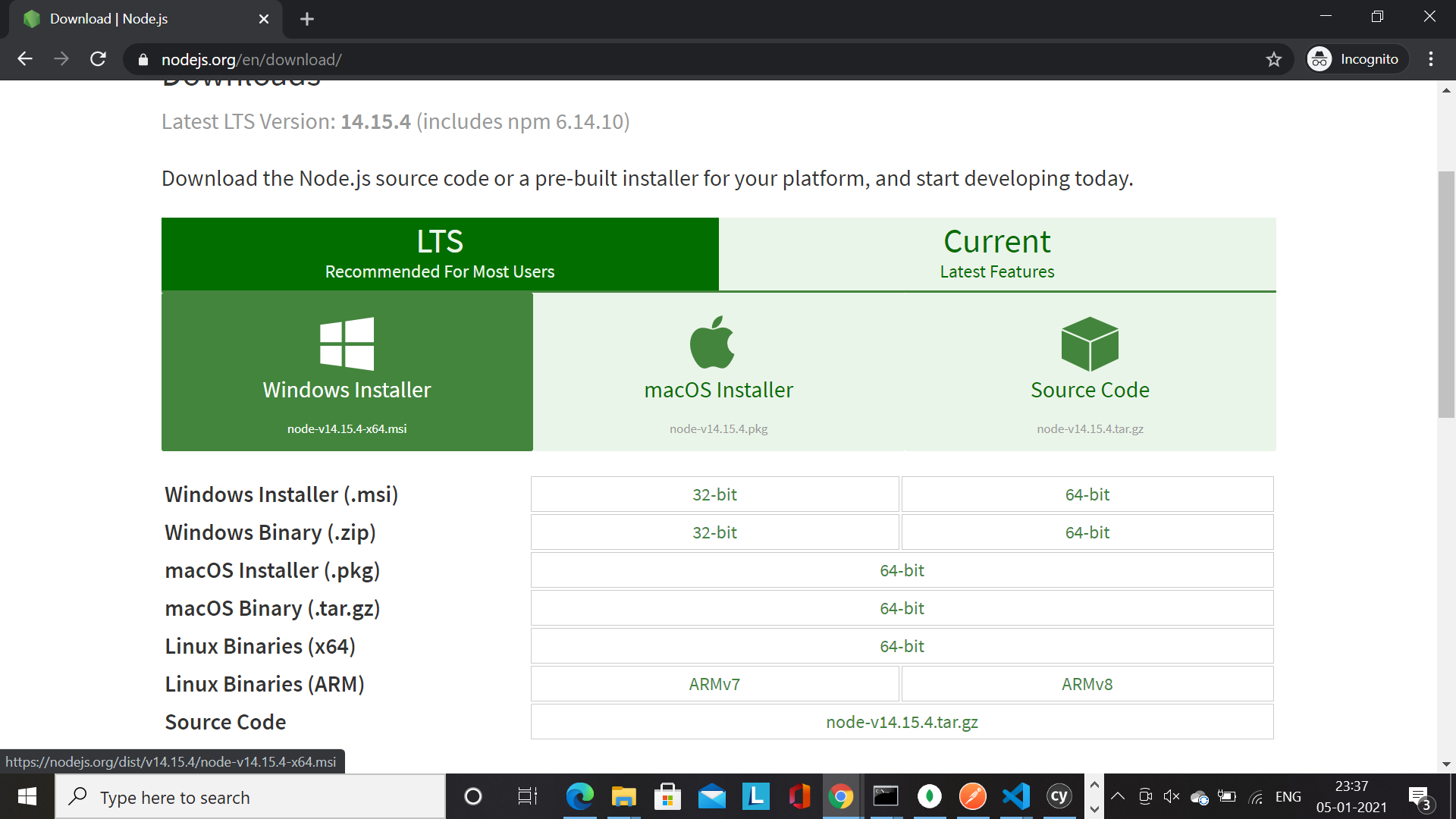
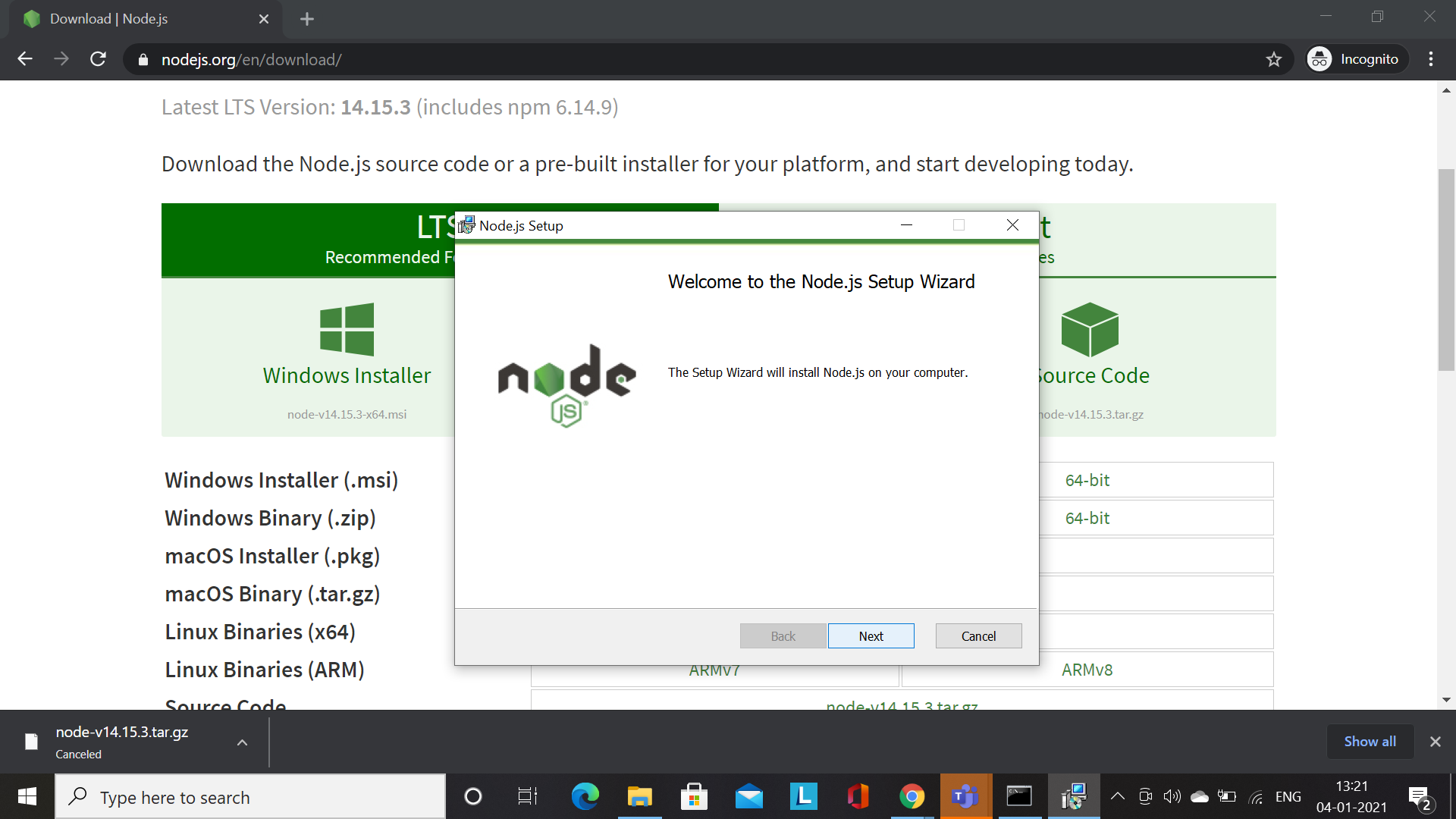
after download then double click on the setup and click on the Next button
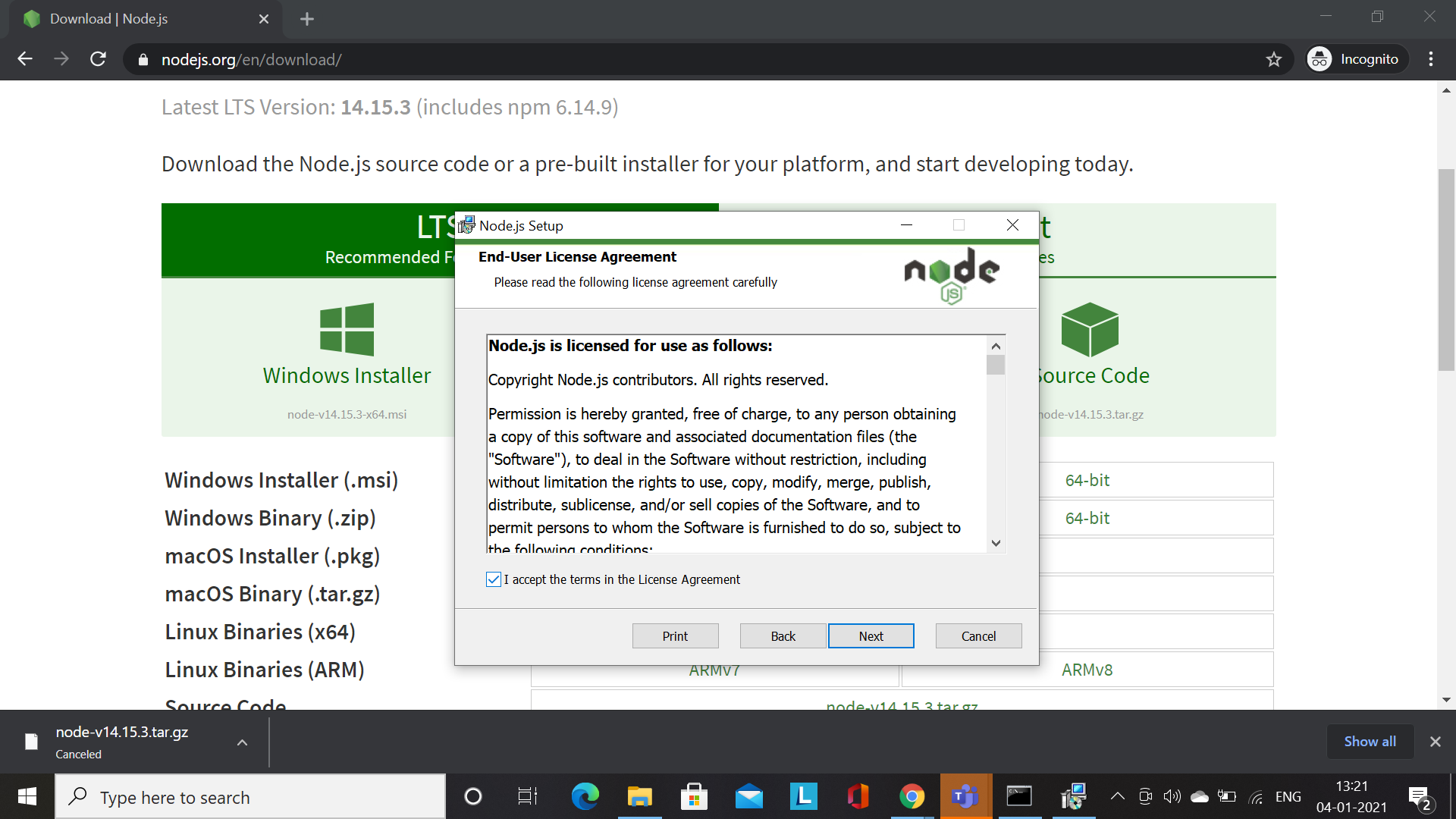
Now, accept the License Agreement then click on the Next button
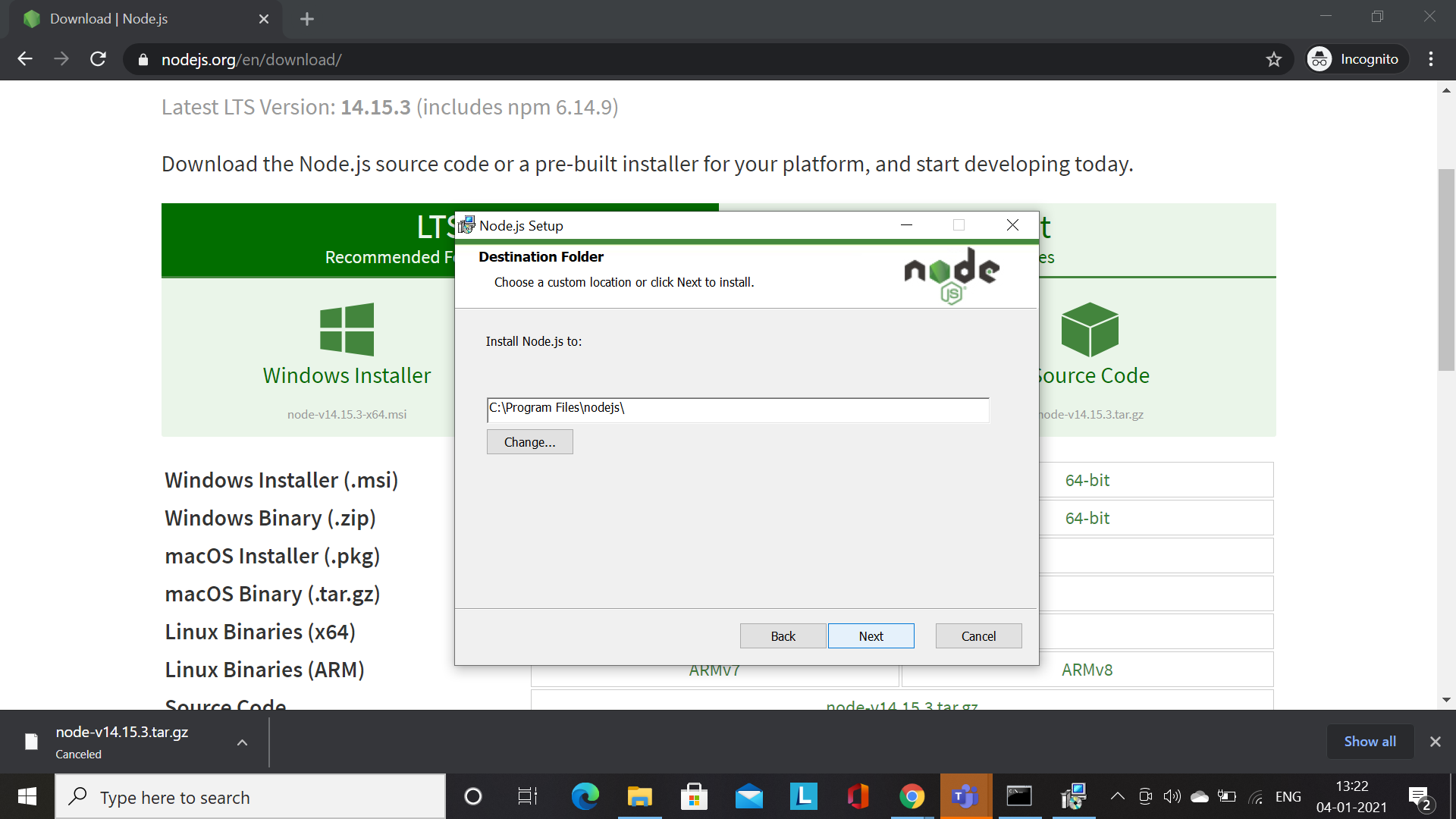
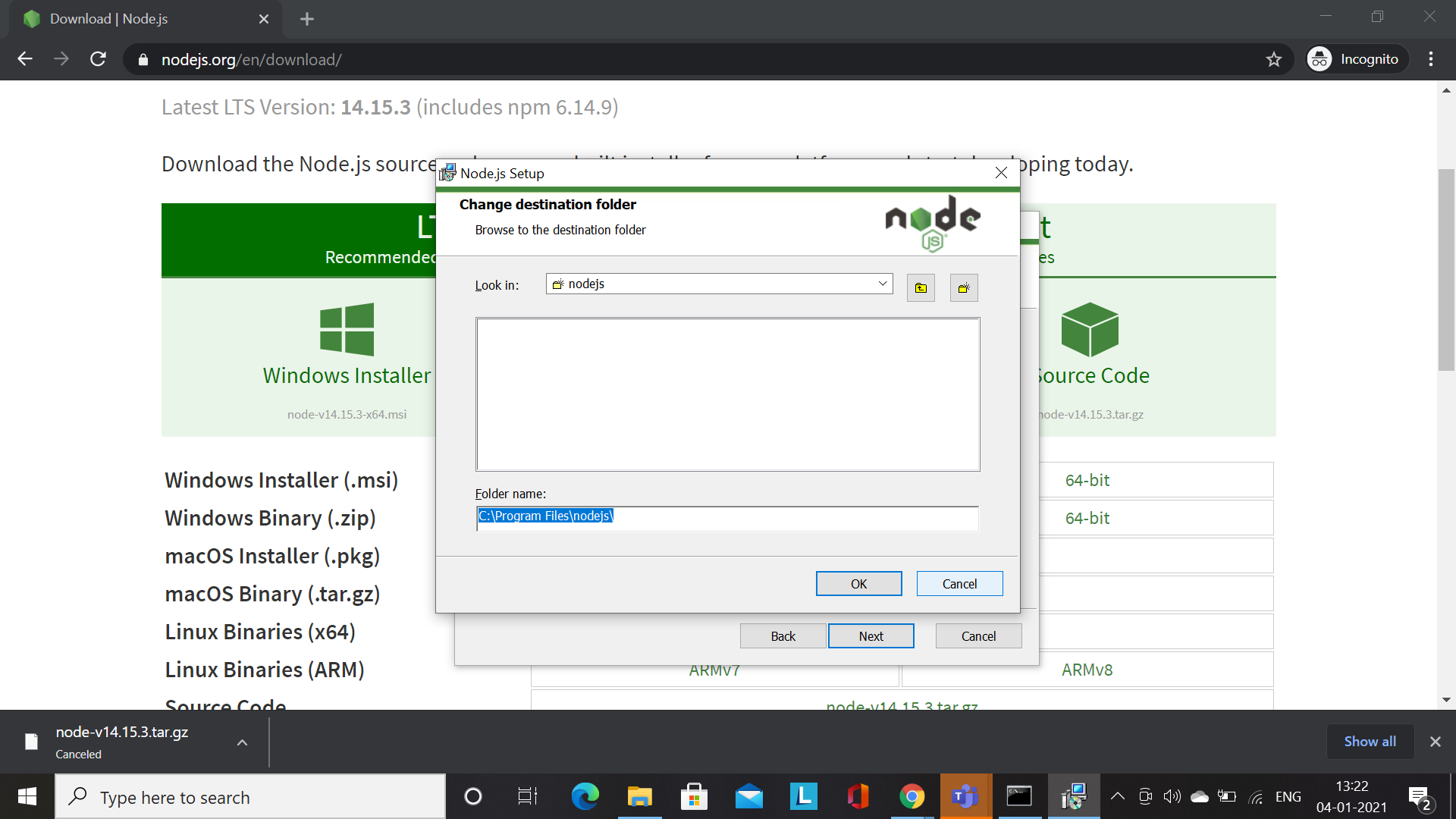
Now, change the path where you want to install Nodejs then click on the Next button
Now, click on the ok button
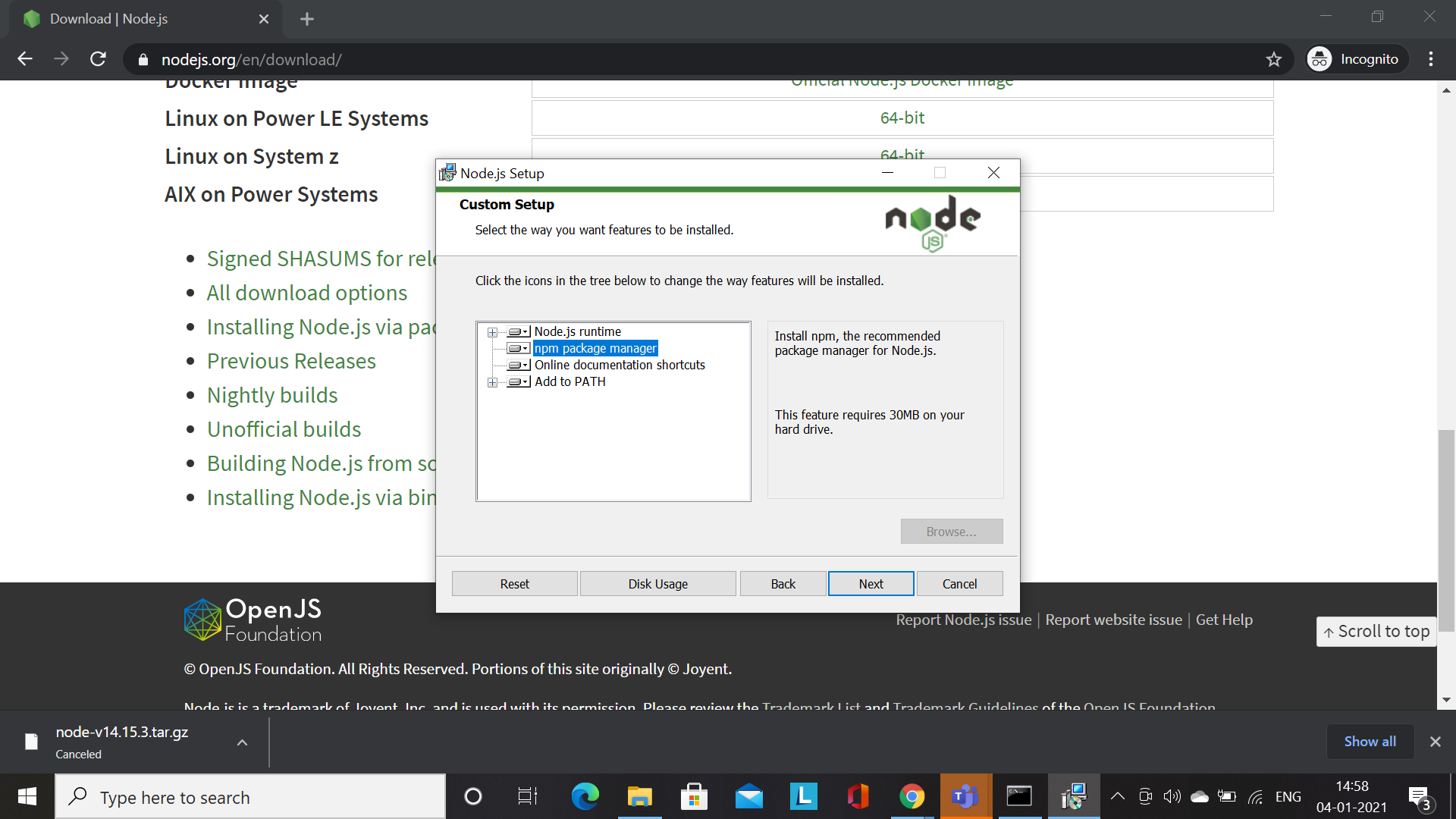
Now select the npm package manager and click on the Next button
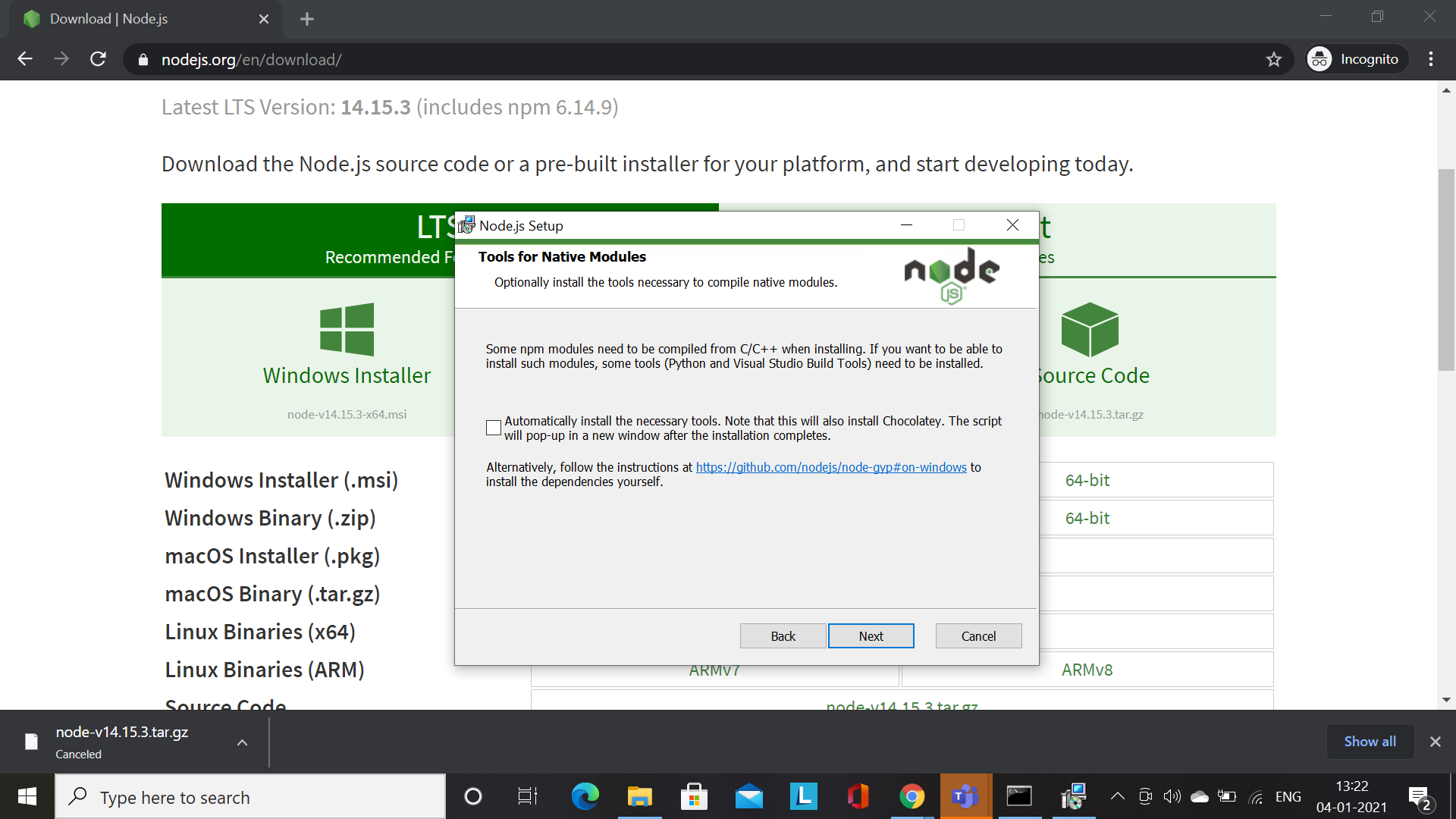
Now, click on the Next button
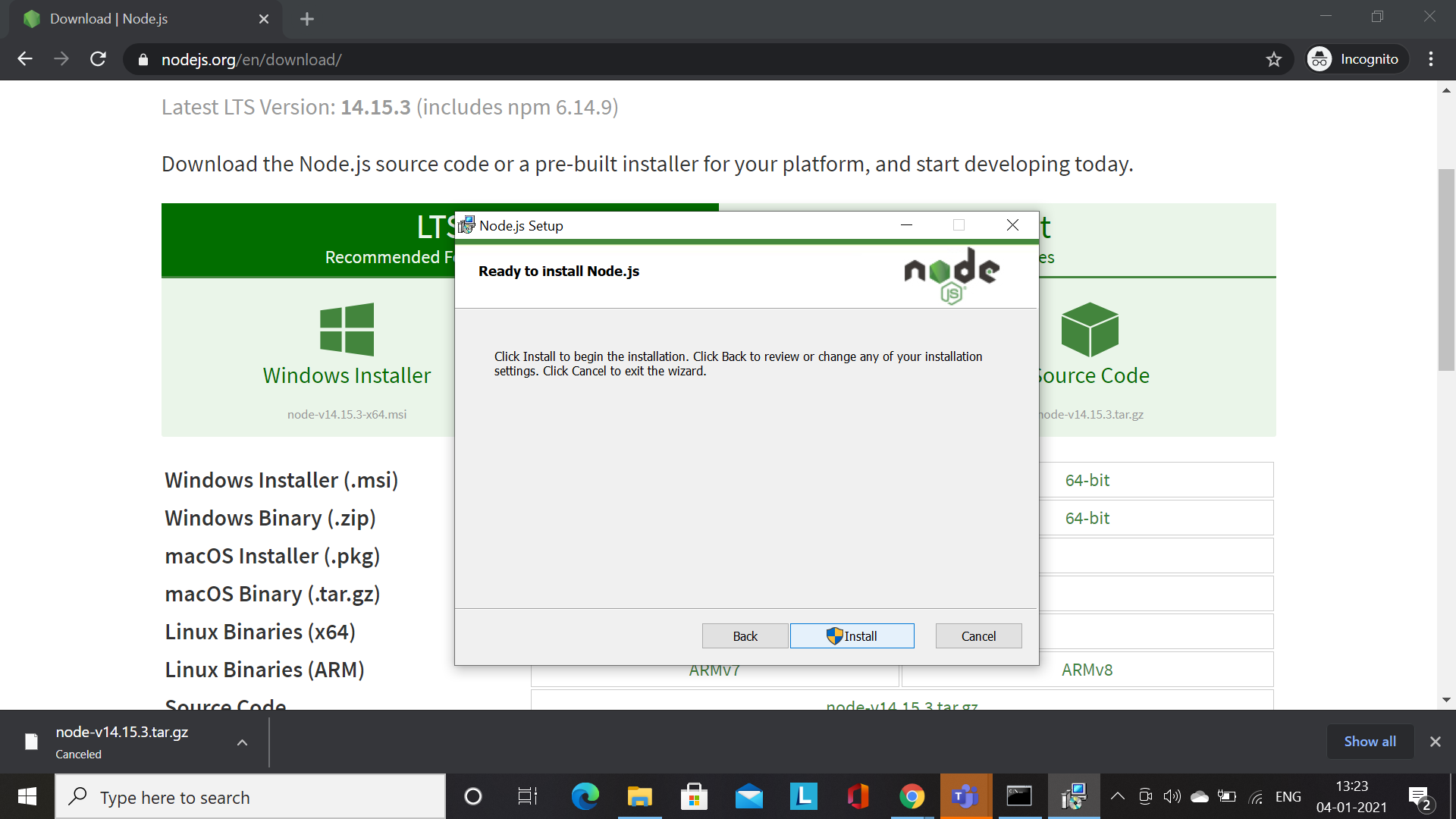
Now, click on the Install button
Now, software is running mode
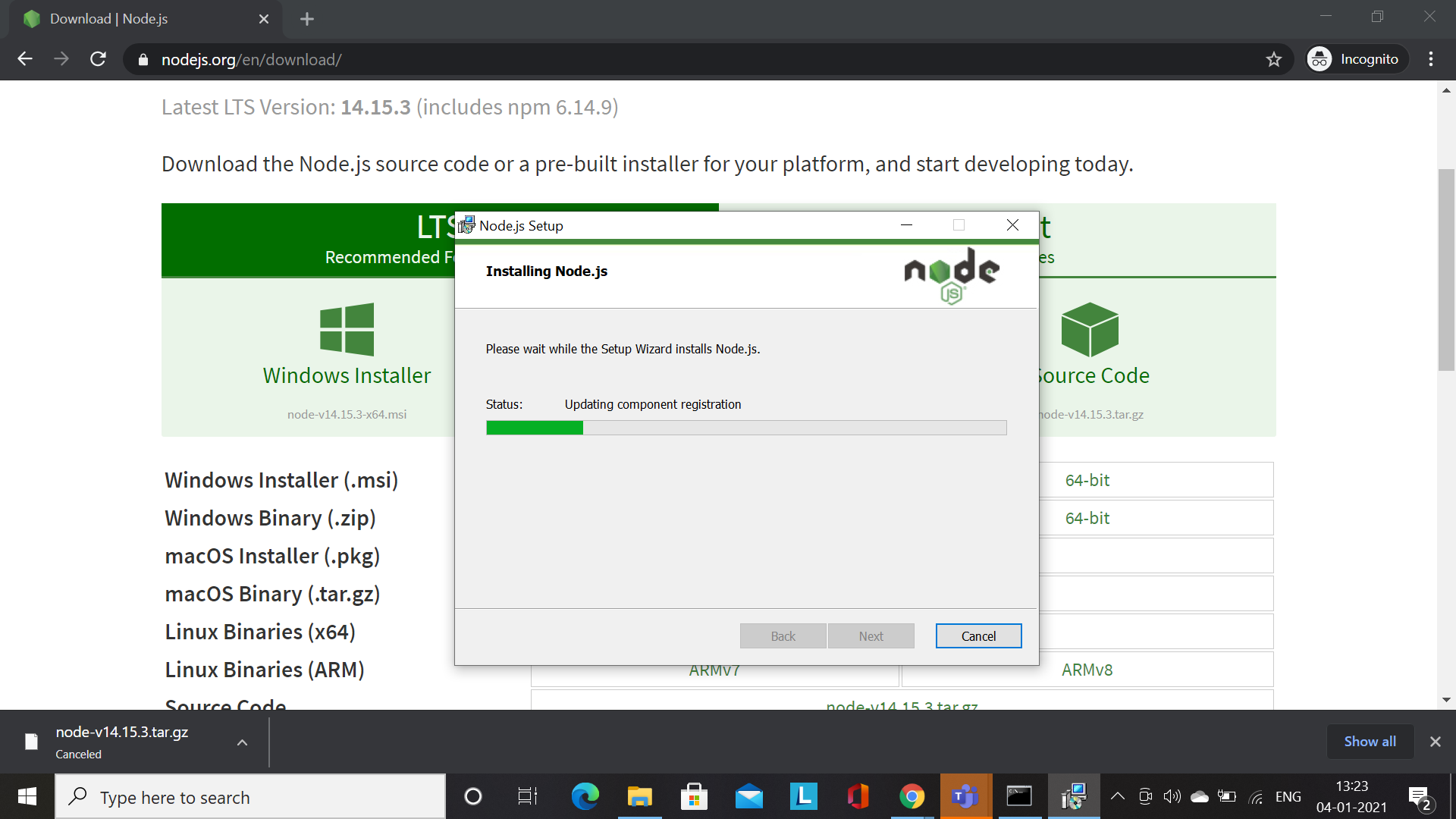
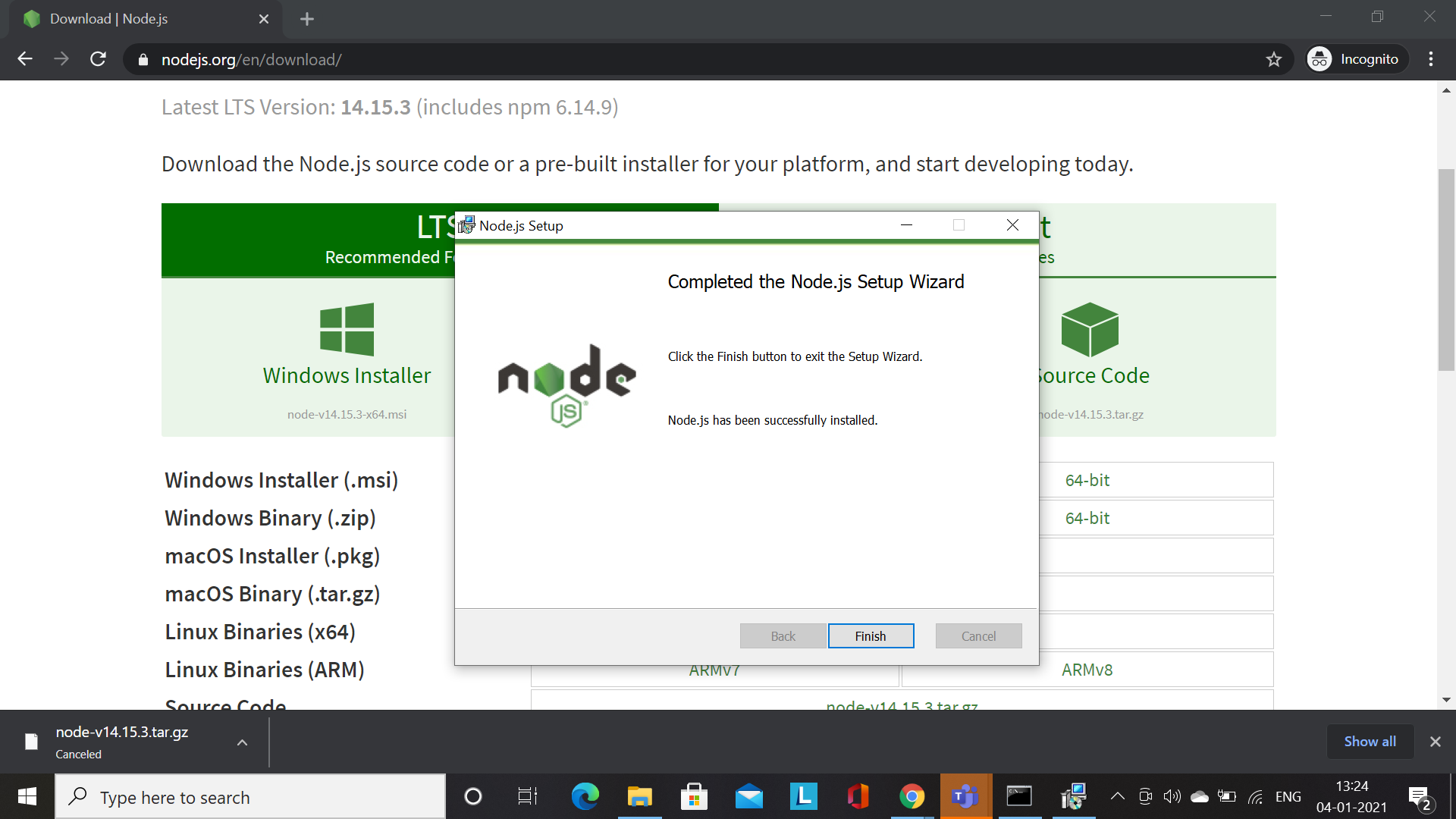
Now, Node.js has been successfully installed
Now, check the version of Nodejs and npm
node -v
npm -v