
Introduction
In this tutorial, you will learn the concept of the difference between Debounce and Throttle.
When you are working with events like scroll, resize, input, and mousemove, your function can run hundreds of times per second.
You can get issues like
❌ Performance issues
❌ Laggy UI
❌ Unnecessary API calls
What is Debounce?
Debounce ensures that a function runs only after a certain delay has passed since the last event.
Or
Wait until the user stops triggering the event.
Real-Life Example
Suppose you are typing in a search box.
1. Without debounce, what will happen:
API call runs on every keystroke.
2. When you use debounce:
API call runs only after the user stops typing for 500ms.
Debounce Example
function debounce(func, delay) {
  let timeout;
  return function(...args) {
    clearTimeout(timeout);
    timeout = setTimeout(() => {
      func.apply(this, args);
    }, delay);
  };
}
function search() {
  console.log("API Call");
}

const debouncedSearch = debounce(search, 500);
document.getElementById("searchBox")
  .addEventListener("input", debouncedSearch);
What is Throttle?
Throttle ensures that a function runs at most once every specified time interval.
OR
Run the function every X milliseconds, there is no matter how many events occur.
Real-Life Example
Suppose when you are scrolling a page, you don’t need to calculate the scroll position 1000 times per second. You just need it every 200ms.
Throttle Example
function throttle(func, limit) {
  let lastCall = 0;
  return function(...args) {
    const now = Date.now();
    if (now - lastCall >= limit) {
      lastCall = now;
      func.apply(this, args);
    }
  };
}
function handleScroll() {
  console.log("Scroll event");
}
const throttledScroll = throttle(handleScroll, 200);
window.addEventListener("scroll", throttledScroll);
Debounce vs Throttle
| Feature | Debounce | Throttle |
|---|---|---|
| Execution Timing | After delay ends | At fixed intervals |
| Best For | Search input, auto-save | Scroll, resize, mousemove |
| API Calls | Reduces extra calls | Controls frequency |
| Function Runs | Once after inactivity | Repeatedly at interval |
Visual Difference
Debounce Timeline
User types:
A — B — C — D
Only after the user stops then function runs once.
Throttle Timeline
User scrolls continuously, but the function runs every 200ms repeatedly.
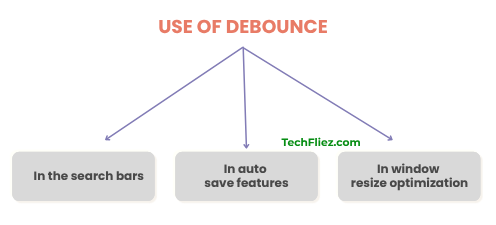
When Should You Use Debounce?
1. You can use the search bars.
2. You can use the Auto-save features
3. You can perform window resize optimization.
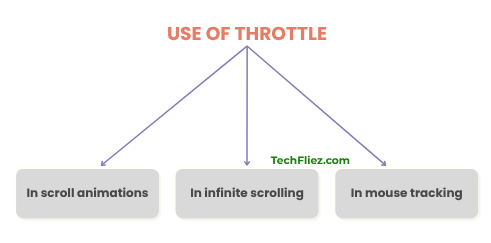
When Should You Use Throttle?
1. When you do scroll animations.
2. When you do Infinite scrolling.
3. When you do Mouse tracking
Common Mistakes
1. ❌ If you are using debounce for scroll
Ans: Scroll usually needs a throttle.
2. ❌ If you forget clearTimeout in debounce
Ans: It will not reset the delay properly.
3. ❌ If you are not binding context
Ans: Use apply() or arrow functions carefully.
Interview Questions
Q 1: What is the main difference between debounce and throttle?
Q 2: Is debounce better than throttle?
Q 3: Can I use lodash for debounce?
Q 4: Which is better for scroll?
Conclusion
Both Debounce and Throttle are useful techniques to control how often a function runs, especially when dealing with frequent events like scrolling, resizing, typing, or mouse movements.
Debounce delays the execution of a function until the user stops acting for a specific time.
Throttle ensures that a function runs at a fixed interval, no matter how many times the event is triggered.
In simple terms:
Debounce → Executes the function after the activity stops.
Throttle → Executes the function at regular intervals during the activity.