
Introduction
In this article, you will learn the concept of LocalStorage and SessionStorage.
Both are part of the Web Storage API.
What is LocalStorage?
localStorage is used to store data in the browser without an expiration time.
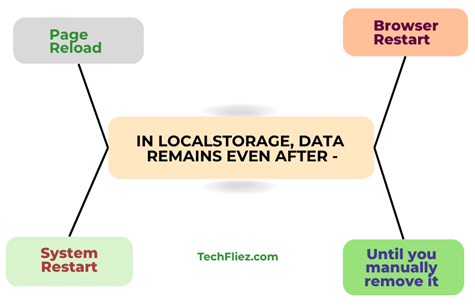
The data remains even after:
- Page reload
- Browser restart
- System restart
- Until you manually remove it.
LocalStorage Basic Example
1. Save data into LocalStorage: In the example below, you will see the setItem() method to store the value in LocalStorage.
localStorage.setItem("username", "John");
2. Retrieve data from LocalStorage: In the example below, you will see the getItem() method to get the value from LocalStorage.
const user = localStorage.getItem("username");
console.log(user);
3. Remove data from LocalStorage: In the example below, you will see the removeItem() method to remove the key from LocalStorage.
localStorage.removeItem("username");
4. Clear all data of the LocalStorage: In the example below, you will see the clear() method to remove all keys from LocalStorage.
localStorage.clear();
What is SessionStorage?
sessionStorage stores data only for the current browser tab’s session.
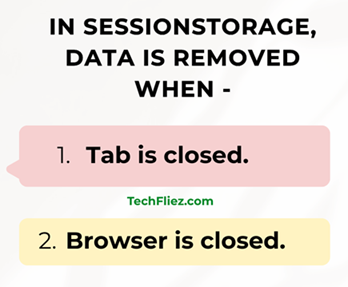
Data is removed when:
- Tab is closed
- The browser is closed
But it stays during:
- Page reload
- Navigation inside the tab
SessionStorage Basic Example
1. Save data into session storage: The setItem() method is used to store a value in session storage.
sessionStorage.setItem("name", "John");
2. Retrieve data from session storage: The getItem() method is used to get a value from the session storage.
const theme = sessionStorage.getItem("name");
3. Remove data from session storage: The removeItem() method is used to delete a key and value from the session storage.
sessionStorage.removeItem("name");
LocalStorage vs SessionStorage
| Feature | localStorage | sessionStorage |
|---|---|---|
| Data Expiry | No Expiry | Until Tab Closes |
| Scope | All Tabs (Same Origin) | Single Tab Only |
| Data Persistence | Long-Term | Short-Term |
| Storage Limit | ~5MB | ~5MB |
| Accessible via | Window.localStorage | Window.sessionStorage |
Important Differences Explained
1. Lifetime
localStorage → Permanent until manually cleared.
sessionStorage → Removed when tab closes.
2. Tab Sharing
localStorage → Shared across all tabs of the same domain.
sessionStorage → Unique per tab.
Example:
If you open the same website in two tabs:
LocalStorage data is shared.
SessionStorage data is not shared.
Storing Objects
Both storages store only strings.
To store objects in localStorage:
const user = { name: "John", age: 25 };
localStorage.setItem("user", JSON.stringify(user));
Retrieve from localStorage:
const storedUser = JSON.parse(localStorage.getItem("user"));
console.log(storedUser.name);
Performance Note
LocalStorage and SessionStorage are synchronous APIs.
Too many read/write operations can block the main thread.
For large data storage, consider
- IndexedDB
- Backend storage
Real-World Example: Storing Login Token
When a user logs in, we store the login token in LocalStorage and SessionStorage, which is very common.
Suppose you open a website and you log in to it, the server usually returns a token (JWT or session token) that proves the user is authenticated. The frontend stores this token in the browser so the user does not need to log in again for every request.
Example: Persistent Login through using LocalStorage
If you want the user to stay logged in even after closing the browser, you can store the token in LocalStorage.
let token = "12dfdsf322323sfs";
// Save login token after logged-in
localStorage.setItem("authToken", token);

// Get token
let savedToken = localStorage.getItem("authToken");

if(savedToken){
    console.log("User is already logged in");
}
Explanation
- When the user logs in, you will get a token from the server.
- The token is saved in LocalStorage.
- Even if the user closes the browser and opens it later, the token still exists.
- The website can automatically log the user in using the saved token.
Example: Temporary Login through SessionStorage
If you want the user to stay logged in only while the browser tab is open, you can store the token in SessionStorage.
let token = "12dfdsf322323sfs";
// Save token
sessionStorage.setItem("authToken", token);

// Get token
let savedToken = sessionStorage.getItem("authToken");

if(savedToken){
    console.log("User logged in for this session");
}
Explanation:
- After logging in, the token is stored in SessionStorage.
- The token works while the tab is open.
- If the user closes the tab or browser, the token is automatically removed.
- The user will need to log in again next time.
Interview Questions
Q 1: Can LocalStorage be used to store authentication tokens?
Q 2: When should you use SessionStorage instead of LocalStorage?
Q 3: What happens to SessionStorage when the browser tab is closed?
Conclusion
LocalStorage and SessionStorage are used to store data directly in the browser, but they serve different purposes.
LocalStorage is good for storing persistent data, such as login tokens that should remain even after the browser is closed.
SessionStorage is useful for storing temporary session data, such as login tokens that should expire when the browser tab is closed.